How to check a GST number on the GST portal
Check a GSTIN from a bill on the GST portal’s own search, without logging in. See whose it is, its status, and what the result does not prove.
By the end, you will have checked a GSTIN on the GST portal: whose it is, and whether its registration is active, suspended or cancelled.
A GSTIN (Goods and Services Tax Identification Number) is the 15-character number a business gets when it registers for GST. The portal’s Search Taxpayer page shows some details of any registration, without logging in (the portal’s Search Taxpayer FAQs).
This page doesn’t look a number up for you. Our GSTIN checker only checks that a number is written correctly. Only the portal’s search shows whether it is registered.
Checking your own GSTIN, for example because a customer says it is wrong? The steps are the same. Then see Checking your own GSTIN.
Before you start
The search needs no login, and the portal’s manual and FAQs mention no fee. Search only on the GST portal itself, at gst.gov.in.
You need the 15-character GSTIN. To search, you also type a CAPTCHA: numbers shown in a picture, which show you are a person. The picture shows 6 numbers (seen on the portal, 18 Nov 2026).
In this part: Where to find the GSTIN. Check it for typing mistakes first.
What to check and have ready
Where to find the GSTIN
- On the bill. A tax invoice must show the seller’s name, address and GSTIN (rule 46 of the CGST Rules, the Central Goods and Services Tax Rules, 2017). So must a bill of supply (rule 49). A business in the composition scheme gives a bill of supply instead, and so does one supplying exempt goods or services. That is section 31(3)(c) of the CGST Act (the Central Goods and Services Tax Act, 2017). In the composition scheme, a small business pays tax at a fixed rate on its turnover (section 10).
- On the name board at the entrance of the shop or office (rule 18(2) of the CGST Rules).
- For your own registration: on your registration certificate (FORM GST REG-06), which the portal gives you (rule 10(1)), and on your own bills.
Check it for typing mistakes first
Type the GSTIN into our GSTIN checker. It runs on your own phone and sends the number nowhere. It takes out spaces, changes small letters to capitals, and warns you where a zero may be the letter O. If it says the GSTIN isn’t written correctly, ask the seller for the right number before you search.
Steps
The labels in bold are as the portal’s manuals show them (read 18 Nov 2026). Those in steps 3 to 5, and the SHOW FILING TABLE and SHOW RETURN FILING FREQUENCY buttons, are also as the search page showed them that day. The real screens may differ a little.
-
Go to gst.gov.in. You don’t need to log in. If a picture covers the page, close it with the × at its top right.
-
Open Search Taxpayer > Search by GSTIN/UIN. On a phone, first tap the button with three lines at the top right of the page (marked A in the picture). The menu opens as a list. Tap Search Taxpayer, then Search by GSTIN/UIN (marked B). On a computer, Search Taxpayer is in the menu bar under the page’s heading. You can also go straight to the search page.
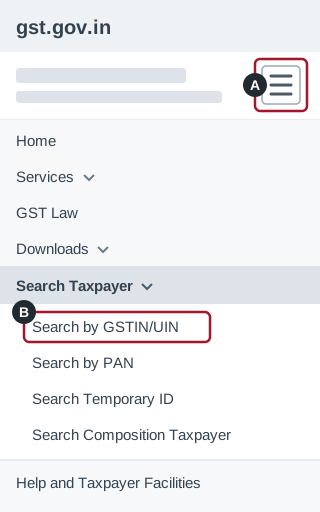
Illustration, not a screenshot: a simplified drawing of the portal’s menu on a phone. Once the menu is open, the button with three lines shows an × instead. The real screen has more on it and may look different. -
In GSTIN/UIN of the Taxpayer, type the 15 characters of the GSTIN, with no spaces (marked A in the picture below). The box also takes a UIN, a number that UN bodies, embassies and some government offices get instead of a GSTIN (the portal’s Search Taxpayer FAQs). Not sure of a character, such as a zero or the letter O? Check the number first with our GSTIN checker, which shows only whether a number is written correctly.
-
A second box appears once you start typing the GSTIN: Type the characters you see in the image below. Type the 6 numbers from the picture in it (marked B). This is the CAPTCHA. If you can’t read the numbers, the button with two round arrows beside the picture gives you a new picture.
-
Click SEARCH (marked C).
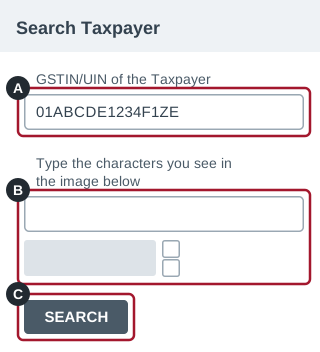
Illustration, not a screenshot: a simplified drawing of the Search by GSTIN/UIN page. The GSTIN 01ABCDE1234F1ZE is made up and belongs to no one. The real screen may look different. -
The details show. Look at three things, and compare them with the bill. First, the Legal Name of Business and the Trade Name (both marked A in the picture below). For a business with one owner, the legal name is the owner’s own name, so look for the shop’s name under Trade Name, or under Additional Trade Name (click View). Then the GSTIN / UIN Status (marked B). If the registration is suspended or cancelled, the line under it can show “(Effective from …)” and a date (marked C). Last, the Principal Place of Business (marked D).
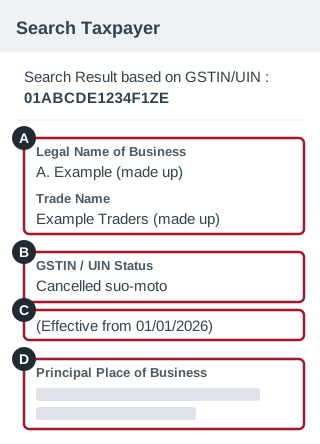
Illustration, not a screenshot: a simplified drawing of a search result, with grey bars for the address. The GSTIN, the names, the date and all the other details are made up and belong to no one. The real screen shows more details, side by side on a wide screen, and may look different. If the status is “Active”, and the names and the address match, see What the result tells you. If not, see If the result doesn’t match the bill.
-
To see which returns were filed, click SHOW FILING TABLE (marked A in the picture below). Choose a year in Financial Year (marked B) and click SEARCH (marked C). For each tax period (a month, a quarter, or a year for the annual return), the tables show whether a return was “Filed” or “Not Filed” (the Status column, marked D), and the date of filing. They don’t show what is in the return, or whether its tax was paid.
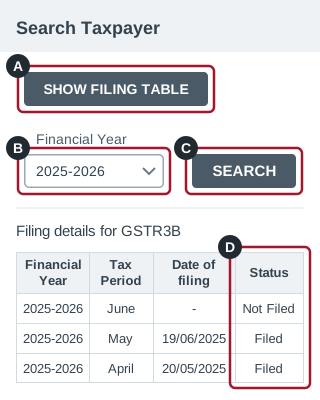
Illustration, not a screenshot: a simplified drawing of one filing table, with made-up rows and dates. The real screen shows more tables and may look different. -
To see whether the business files every month or every quarter, click SHOW RETURN FILING FREQUENCY.
Check it worked
- The result shows “Search Result based on GSTIN/UIN” with the GSTIN you typed, a Legal Name of Business and a GSTIN / UIN Status.
If no details show
- A red line under the first box says “The GSTIN/UIN that you have entered is invalid. Please enter a valid GSTIN/UIN.” Check that you typed the 15 characters correctly: see step 3. The picture box is emptied too, so type the numbers from the new picture before you click SEARCH again. The portal showed this same line for a made-up number that our GSTIN checker accepts, so it doesn’t always mean a typing mistake. If you typed the number exactly as it is on the bill, ask the seller to confirm it.
- A red line under the second box says “Enter valid letters shown in the image below”. The numbers you typed from the picture were wrong. The portal empties the box and shows a new picture. Type the new numbers, and click SEARCH again.
Both lines are as the portal showed them on 18 Nov 2026.
If the portal shows another error, take a screenshot. Then call the GST help desk on 1800-103-4786, or use the Grievance Redressal Portal for GST. Both are on the portal’s Contact Us page (as of 18 Nov 2026).
What the result tells you
If the status is “Active”, and the names and the address match the bill, the portal shows that GSTIN as registered, under that name and address, today. It shows no more than that: see What the search can’t tell you.
The status
The status is under “GSTIN / UIN Status”. “Active” is as the portal showed it on 18 Nov 2026. The other statuses below are as the portal’s manuals and FAQs show them. If you see a status that isn’t explained here, you can ask the GST help desk what it means (see If no details show).
- “Active”: the registration isn’t suspended or cancelled. The portal’s FAQs use the word this way: a status changes from “Suspended” to “Active” when the case against it is dropped (questions 18 and 24 of the portal’s FAQs on suo moto cancellation, which is cancellation that a tax officer starts). On the portal on 18 Nov 2026, “Active” had no “(Effective from …)” line under it.
- “Suspended”, with “(Effective from …)” and a date on the next line. While a registration is suspended, the business must not issue a tax invoice or charge tax (rule 21A(3) of the CGST Rules, the Central Goods and Services Tax Rules, 2017). A registration shows “Suspended” when:
- its owner has applied to cancel it, or a tax officer has started to cancel it (question 18 of the same FAQs);
- the portal has suspended it by itself (“auto-suspended”, Note 1 of the Search Taxpayer manual). This can happen, for example, when returns aren’t filed, when returns show large differences, or when bank account details aren’t given in time (rule 21A(2A) and (4); questions 23 and 25 of the same FAQs).
- “Cancelled suo-moto”, with “(Effective from …)” and a date. A tax officer cancelled the registration on their own motion, without the owner applying (section 29(1) and (2) of the CGST Act, the Central Goods and Services Tax Act, 2017; the portal’s suo moto cancellation FAQs).
- “Inactive”: shown in the picture of results in the portal’s manual on searching by PAN. Question 9 of the suo moto cancellation FAQs says the status changes to “Inactive” once an officer’s cancellation order is issued.
The date under a cancelled status can be earlier than the day of the order: section 29(2) of the CGST Act lets the officer cancel “from such date, including any retrospective date, as he may deem fit”. An officer can also move the date earlier afterwards, after giving a notice. For a registration cancelled on its owner’s request, that is new rule 20(14) to (20), from 1 Nov 2026; for one an officer cancelled, new rule 22(6), from 1 Apr 2027 (both in Notification No. 05/2026-Central Tax). So the date shown can change.
The other details
| On the screen | What it tells you |
|---|---|
| GSTIN/UIN | The number you searched. |
| Legal Name of Business | The name on the business’s PAN (Permanent Account Number). For a business with one owner (a proprietorship), it is the owner’s name (instruction 5 of FORM GST REG-01, the application form for GST registration, in Notification No. 05/2026-Central Tax). |
| Trade Name | The business’s trade name, if it has one (“Trade Name, if any” in FORM GST REG-01). The manual’s pictures show “NA” where there is none. |
| Effective Date of registration | The date the registration starts from (rule 10 of the CGST Rules). |
| Constitution of Business | The kind of business it is in law, such as “Proprietorship” (the manual’s pictures). |
| Taxpayer Type | The kind of registration, such as “Regular” (seen on the portal, 18 Nov 2026) or “SEZ Unit”, a unit in a Special Economic Zone (the manual’s pictures). |
| Principal Place of Business | The main address. |
| Nature of Business Activities, Dealing In Goods and Services | What the business does, and the goods and services it deals in. |
| Other lines | A result can show more lines, such as Administrative Office, Other Office, Additional Trade Name and Whether e-KYC Verified? (seen on the portal, 18 Nov 2026). They aren’t covered here. |
The filing table
The manual’s picture shows one table each for GSTR3B, GSTR1, GSTR9 and GSTR9C. Each row is one return, with its Tax Period, its Date of filing and a Status of “Filed” or “Not Filed”.
- GSTR-1 is the business’s statement of its sales (“outward supplies”, rule 36(4) of the CGST Rules).
- GSTR-3B is the return a business files for each month or quarter (rule 61).
- GSTR-9 is the annual return. GSTR-9C is a reconciliation statement filed with it, only by a business whose turnover for the year is over ₹5 crore (rule 80(1) and (3)).
SHOW RETURN FILING FREQUENCY shows the frequency for each quarter of the year, such as “Monthly” (the manual’s picture).
If the result doesn’t match the bill
The search can’t tell you whether to pay a bill, or whether you can take input tax credit on it. Input tax credit (ITC) is the GST you paid on business purchases, which you can usually subtract from the GST you owe. This is what the law says about each case:
- The name or the address is different. Compare the bill with both names on the result, the Legal Name of Business and the Trade Name. If neither matches, or the address is different, ask the seller.
- The status is “Suspended”. From the “(Effective from …)” date, the business must not issue a tax invoice or charge tax while the suspension lasts (rule 21A(3) of the CGST Rules). Compare that date with the bill’s date.
- The status is “Cancelled suo-moto” or “Inactive”. A person who isn’t registered must not collect GST (section 32(1) of the CGST Act). To take ITC, you need a tax invoice from a supplier who is registered (section 16(2)(a)). Compare the bill’s date with the “(Effective from …)” date. The result shows the status today, not on the bill’s date, and the date shown can later be moved earlier (see The status).
In each case, ask the seller about it. For what it means for your payment or your ITC, ask a qualified tax professional.
What the search can’t tell you
- “Active” shows only today’s status. It doesn’t show that the business reports its sales or pays its tax.
- It doesn’t promise you ITC. To claim it, the seller must report your bill in their GSTR-1, or with the invoice furnishing facility (IFF). The bill must then reach your GSTR-2B, the statement of ITC from your suppliers (section 16(2)(aa) of the CGST Act, rule 36(4) of the CGST Rules). The tax must also be paid to the government (section 16(2)(c)). The search shows none of this. To check whether a bill has reached your GSTR-2B, see Check your GSTR-2B first, under Before you start, in how to file GSTR-3B.
- “Filed” doesn’t show what is in a return. The filing table shows only whether a return was filed, and when.
- It doesn’t prove the bill came from that business. Making a bill with another business’s GSTIN is an offence with a penalty (section 122(1)(xix) of the CGST Act).
Checking your own GSTIN
Your GSTIN is on your registration certificate (rule 10(1) of the CGST Rules), and on every tax invoice and bill of supply you issue (rules 46 and 49).
A customer may simply have mistyped your number. Search the number the customer has, as in the steps. If the result shows your legal name, and the number is the same as on your certificate, it is yours. For a business with one owner, the legal name is the owner’s own name, not the shop’s name. Give the customer the number again, exactly as on your certificate. They can search it on the portal themselves. If you have more than one GSTIN, check it is the one on the certificate for the place you billed from.
If the portal says your own number is invalid, check it against your registration certificate, character by character. If it matches the certificate and the portal still says so, call the GST help desk (see If no details show).
What each status means for you:
- “Active”: the search shows no suspension or cancellation today.
- “Suspended”: you must not issue a tax invoice or charge tax while it lasts (rule 21A(3)).
- If you applied to cancel your registration, it shows “Suspended” while the application is dealt with (new rule 20(4), from 1 Nov 2026, in Notification No. 05/2026-Central Tax; question 18 of the suo moto cancellation FAQs).
- If the portal sent you a notice for not filing returns, file all your due returns. The portal then drops the case by itself (questions 23 and 24 of the suo moto cancellation FAQs). If it doesn’t, the portal has an INITIATE DROP PROCEEDING button for this (question 24). A portal advisory of 5 Dec 2025 puts the button under Services > User Services > View Notices and Orders. There is more in “Not cancelled yet?” under Check that you can apply, under Before you start, in how to revoke a cancelled registration.
- If it was suspended for missing bank account details, add them at Services > Registration > Amendment of Registration (Non-Core Fields) (the same advisory). If the registration hasn’t been cancelled by then, the suspension ends by itself (question 26 of the same FAQs; rule 21A(4) of the CGST Rules).
- “Cancelled suo-moto” or “Inactive”: if a tax officer cancelled it, you may be able to get it back. The portal counts the days from the date of the cancellation order. Up to 90 days, you can apply. From 91 to 270 days, you must also give a reason for the delay, and a senior tax officer decides whether to accept it. After 270 days, the portal won’t take the application (the portal’s revocation manual; rule 23(1) of the CGST Rules). See how to revoke a cancelled registration.
To read the notice or order, log in and open Services > User Services > View Notices and Orders (questions 13 and 16 of the same FAQs). The filing table shows which of your returns show as “Not Filed”.
Questions
The status is “Active”. Will I get input tax credit on the bill?
Not for that reason alone. The status shows only the registration today. Your input tax credit (ITC) depends on other things too, such as the seller reporting your bill and the tax being paid (section 16(2) of the CGST Act). See What the search can’t tell you.
The seller is in the composition scheme but charged GST on the bill. Is that allowed?
In the composition scheme, a small business pays tax at a fixed rate on its turnover. The law says such a business “shall not collect any tax from the recipient” (section 10(4) of the CGST Act). It gives a bill of supply, not a tax invoice. The words “composition taxable person, not eligible to collect tax on supplies” must be at the top of it (rule 5(1)(f) of the CGST Rules). The search shows the registration today, which may not be what it was on the bill’s date. If you have such a bill, ask the seller, or a qualified tax professional.
Can I see the owner’s name or contact details?
Not without logging in. Some details show only after you log in to the portal with your own username and password. They include the names of the proprietor, directors or promoters, and the contact details of the places of business (the portal’s Search Taxpayer FAQs). The legal name is shown to everyone, and for a business with one owner it is the owner’s name.
I have only the business’s PAN. Can I find its GSTIN?
Yes. Open Search Taxpayer > Search by PAN. Type the PAN in Permanent Account Number (PAN), type the numbers in the picture, and click SEARCH. Each GSTIN on that PAN is listed. Click one to see its details, after typing the numbers in a new picture (the portal’s manual on searching by PAN).
A GSTIN is registered on my PAN, but I never applied. What can I do?
Search by your own PAN, as in the question above. The results page lets you report that GSTIN to the tax officer who handles it. You confirm who you are with one-time passwords (OTPs) and your Aadhaar, and get an ARN (application reference number). To follow it, open Services > Track Application Status > Registration. The portal’s manual on searching by PAN shows each screen. A qualified tax professional can help with what comes next.
Sources
- Manual: Search Taxpayers using GSTIN/UIN GST portal help pages (tutorial.gst.gov.in)
- FAQs: Search Taxpayers GST portal help pages (tutorial.gst.gov.in)
- Manual: Search Taxpayers using PAN GST portal help pages (tutorial.gst.gov.in)
- FAQs: Suo Moto Cancellation GST portal help pages (tutorial.gst.gov.in)
- Manual: Revocation of Cancelled Registration GST portal help pages (tutorial.gst.gov.in)
- Auto Suspension of GST Registration due to Non-Furnishing of Bank Account Details as per Rule 10A, 5 Dec 2025 GST portal (www.gst.gov.in)
- Search Taxpayer (Search by GSTIN/UIN) GST portal (services.gst.gov.in)
- Contact Us GST portal (www.gst.gov.in)
- Central Goods and Services Tax Act, 2017: section 10(1) and (4) (Composition levy); section 16(2) (Eligibility and conditions for taking input tax credit), including clauses (a), (aa) and (c); section 29(1) and (2) (Cancellation or suspension of registration); section 31(3)(c) (Tax invoice); section 32(1) (Prohibition of unauthorised collection of tax); section 122(1)(xix) (Penalty for certain offences) CBIC’s tax information site: open GST, then Acts
- Central Goods and Services Tax Rules, 2017: rule 5(1)(f), rule 10, rule 18, rule 21A(2A), (3) and (4), rule 23(1), rule 36(4), rule 46, rule 49, rule 61 and rule 80 CBIC’s tax information site: open GST, then Rules
- Notification No. 05/2026-Central Tax, 26 Oct 2026: Central Goods and Services Tax (Amendment) Rules, 2026 (para 4: new rule 20(4) and 20(14) to (20), from 1 Nov 2026; para 7: new rule 22(6), from 1 Apr 2027; para 28: FORM GST REG-01, instruction 5 on the legal name) CBIC (taxinformation.cbic.gov.in)