How to file GSTR-3B and pay your GST
For a month or quarter with sales, purchases or tax to pay. How to check the figures the GST portal fills in, pay the tax and file GSTR-3B, and what to do about a mistake.
Checked against Manual: Creation, Saving, Payment of Taxes & Filing of Form GSTR-3B Return and FAQs: Form GSTR-3B on
By the end, you will have filed GSTR-3B for a month or a quarter, paid the GST due, and saved a copy.
GSTR-3B is the return in which you report your sales, claim your input tax credit (ITC) and pay the tax. ITC is the GST you paid on business purchases, which you can usually subtract from the GST you owe. The GST portal fills in most of it from your GSTR-1, the return of your sales, and your GSTR-2B, the statement of ITC from your suppliers’ returns. You check the figures, pay, and sign.
A normal taxpayer files GSTR-3B for every month, or for every quarter in the QRMP scheme (quarterly return, monthly payment). You file it even for a period with no sales or purchases. Both are in section 39(1) and (8) of the CGST Act (the Central Goods and Services Tax Act, 2017). For a month or quarter with no sales, no purchases and no tax to pay, see how to file a nil GSTR-3B.
In the composition scheme? In this scheme, a small business pays tax at a fixed rate on its turnover (section 10 of the CGST Act). You don’t file GSTR-3B (section 39(1)). Our GST due dates page lists the returns you do file.
Before you start
File GSTR-3B and pay its tax by the due date (section 39(1) and (7) of the CGST Act). Our GST due dates page lists it.
Have these ready
- Your username and password for the GST portal. Type them only on gst.gov.in.
- A way to sign the return:
- EVC (electronic verification code): a one-time password (OTP) sent to the authorised signatory’s mobile and email. That is the person allowed to sign for the business. If you own the business alone, that is usually you. Rule 26(2) of the CGST Rules (the Central Goods and Services Tax Rules, 2017) says who can sign. On a phone, use EVC.
- or a DSC (digital signature certificate) registered on the portal. It needs a computer, its USB token and the portal’s signing program, emSigner. A token issued on or after 21 Sep 2026 needs emSigner version 3.3 (portal advisory of 19 Sep 2026).
- If the business is a company (such as a private limited company) or an LLP (limited liability partnership), have a DSC ready. The portal may ask for one. Its list of new features for Oct to Dec 2021 says companies can now sign with EVC too. But some of its help pages still say a DSC is mandatory for companies and LLPs (such as question 36 of its FAQs on GSTR-1).
- Your GSTR-1 for the same month or quarter, already filed: see how to file GSTR-1. Every earlier GSTR-3B must be filed too (section 39(10) of the CGST Act).
- Your books for the period: your sales and purchase bills.
- Money for the tax your ITC doesn’t cover. Money you pay in goes to your electronic cash ledger, and ITC to your electronic credit ledger (section 49 of the CGST Act), both under Services > Ledgers. You can file only once the money is in your cash ledger, so pay early. The portal’s FAQs on that ledger say when a payment gets there:
- net banking, or cash at the bank: usually at once
- NEFT/RTGS (a bank transfer): usually the same day
- card: after at least 24 hours, but it can take up to 45 days
- cheque: once it clears, which can take up to 90 days for another bank’s cheque
- UPI: the FAQs don’t say.
Check your GSTR-2B first
The portal makes GSTR-2B on the 14th of the next month. In the QRMP scheme, it makes one on the 14th of the month after the quarter (its advisory of 8 Oct 2025 and its FAQs on GSTR-2B). GSTR-2B fills in your ITC in table 4 of GSTR-3B, so wait for it: until then, table 4 isn’t filled in (the portal’s GSTR-3B manual). Compare GSTR-2B with your purchase bills (step 4 opens it).
- Your suppliers’ invoices also show in the Invoice Management System (IMS). Open Services > Returns > Invoice Management System (IMS). You can accept, reject or keep each invoice pending. An invoice you take no action on counts as accepted (the portal’s IMS FAQs).
- Reject an invoice that isn’t yours or is wrong. Keep one pending if the goods haven’t arrived: it then stays out of this GSTR-2B. Accept it when they arrive, because a pending invoice is removed once its ITC time limit is over (the IMS FAQs and section 16(4) of the CGST Act).
- If you change anything after GSTR-2B is made, click COMPUTE GSTR-2B in IMS, then AGREE AND CONTINUE, before you open GSTR-3B in step 5 (the portal’s IMS manual).
- No GSTR-2B? The portal doesn’t make one while last period’s GSTR-3B is unfiled. File that first, then click COMPUTE GSTR-2B (the IMS FAQs).
If you file every quarter
You file GSTR-1 and GSTR-3B every quarter but pay tax every month. The scheme is for businesses with a turnover of up to ₹5 crore in both the last financial year and this one. If you have more than one GST registration under the same PAN (permanent account number), count their turnover together. If this year’s turnover goes over ₹5 crore, you must switch to monthly returns from the next quarter (rule 61A(2) of the CGST Rules). You join or leave it under Services > Returns > Opt-in for Quarterly Return (the portal’s FAQs on the QRMP scheme).
- For each of the first two months, pay the tax with a challan, the payment slip you make on the portal (FORM GST PMT-06). Pay it by its due date (rule 61(3) of the CGST Rules): our due dates page lists PMT-06.
- Open Services > Payments > Create Challan. Choose Monthly payment for quarterly return, the Financial Year, the month as the Period, and a Challan Type (the portal’s challan manual):
- 35% Challan: the portal fills in the amount from your last GSTR-3B. If that return was for a quarter, it is 35% of the tax you paid in cash with it. If it was for a month, it is all the tax you paid in cash with it. Pay this challan on time, and pay the rest with the quarter’s GSTR-3B by its due date. Then you pay no interest for these months (Circular No. 143/13/2020-GST, para 8.1).
- Challan on self-assessment basis: you work out the month’s tax after ITC. Interest is charged on any part paid late or not paid (para 8.2).
- Click PROCEED (for a 35% challan, then GENERATE 35% CHALLAN), and pay as in step 12.
- You need not pay for a month with no tax due, or if your cash and credit ledgers already hold enough for its tax. To skip paying in the second month, the ledgers must hold enough for both months’ tax together (para 6.3).
- After the quarter, file one GSTR-3B, choosing the quarter’s last month as the Period in step 3. The challan money in your cash ledger goes towards the quarter’s tax (rule 61(4)).
Steps
The labels in bold are as the portal’s manuals show them on 1 Nov 2026. The real screens may differ a little.
-
Go to gst.gov.in and log in.
-
Open Services > Returns > Returns Dashboard. The File Returns page opens.
-
Choose the Financial Year, the Quarter and the month as the Period (in the QRMP scheme, the quarter’s last month). Click SEARCH (marked A in the picture below).
-
Check that the GSTR1 tile shows “Filed” (marked B). If it doesn’t, file GSTR-1 first. On the GSTR2B tile, click VIEW (marked C) to see your ITC. If a bill is wrong or missing, see Check your GSTR-2B first. Then open the File Returns page again and search for the period, as in steps 2 and 3.
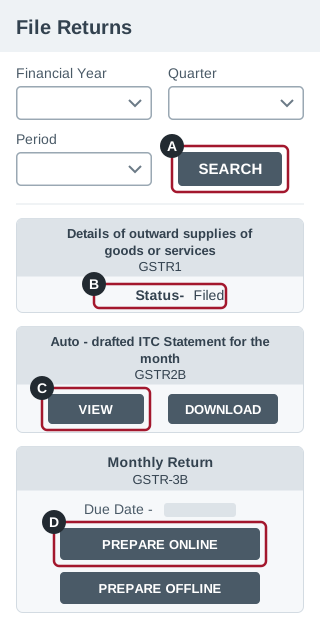
Illustration, not a screenshot: a simplified drawing of the File Returns page, with three of its tiles one under the other. The real screen has more on it and may look different. -
On the GSTR-3B tile, click PREPARE ONLINE (marked D in the picture above).
-
If a page of questions opens, the first question is A. Do you want to file Nil return? Choose NO and click NEXT. If a summary of what the portal filled in shows, look at its GSTR-2B rows: “Not Generated” means your ITC isn’t filled in yet (see Check your GSTR-2B first). Then click CLOSE.
-
The GSTR-3B page opens. Click SYSTEM GENERATED GSTR-3B (marked A in the picture below) for a PDF of the figures the portal filled in.
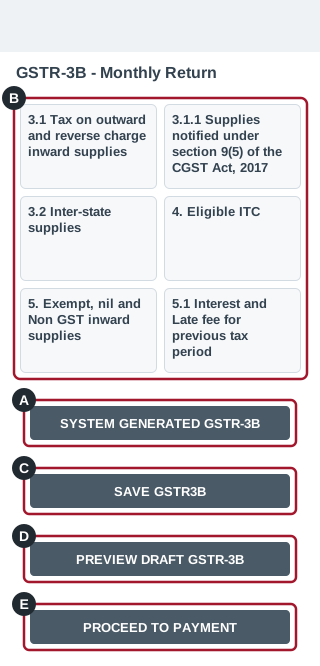
Illustration, not a screenshot: a simplified drawing of the GSTR-3B page. On the portal the tiles sit three in a row and the buttons in one row. The real screen has more on it and may look different. -
Click each tile (marked B) and check its figures against your books. Click CONFIRM to keep them. A message about exports may show when you open the 3.1 tile: click OK.
- 3.1 Tax on outward and reverse charge inward supplies: your sales and their tax, from GSTR-1.
- Row (d) is purchases on which you pay the GST instead of the seller (reverse charge). Only goods and services that the government has listed in notifications are under reverse charge (section 9(3) and (4) of the CGST Act). Buying from a seller without GST registration doesn’t put a purchase under reverse charge unless it is on that list.
- GSTR-2B fills in row (d) only from registered sellers’ bills, so add any other reverse charge purchase yourself. If you aren’t sure, ask a qualified tax professional.
- 3.1.1 Supplies notified under section 9(5) of the CGST Act, 2017: sales on which an online platform (an e-commerce operator) pays the tax, from GSTR-1.
- 3.2 Inter-state supplies: the part of those sales made to buyers in other States who aren’t normal registered taxpayers, from GSTR-1.
- 4. Eligible ITC: from GSTR-2B.
- Claim ITC on a registered supplier’s bill only if you have the bill and it is in your GSTR-2B (section 16(2) of the CGST Act and rule 36(4) of the CGST Rules).
- Reverse charge tax you add yourself isn’t in GSTR-2B. If you can claim its ITC, enter it under (A) in row (3) Inward supplies liable to reverse charge (other than 1 & 2 above), or in row (2) Import of services for services from abroad. Claim no more than the reverse charge tax you have paid (the portal’s FAQs on GSTR-2B and its advisory of 29 Dec 2025).
- GSTR-2B may show ITC you can’t claim, such as GST on things for your own personal use (section 17(5) of the CGST Act). Enter it under (B) ITC Reversed, in row (1). That row names section 17(5).
- Raise a figure above what GSTR-2B shows only for ITC that the first two points allow. One example is ITC on a bill that was in an earlier GSTR-2B but that you forgot to claim (see Fixing a mistake). The portal then shows the figure in red, with a warning. A large difference can also bring a notice later (rule 88D).
- 5. Exempt, nil and Non GST inward supplies: the portal doesn’t fill this in. Enter purchases with no GST on them (from businesses in the composition scheme, exempt or nil-rated, or outside GST), split into inter-State (from another State) and intra-State (within your State).
- 5.1 Interest and Late fee for previous tax period: interest and late fee the portal has worked out, such as for last period’s GSTR-3B filed late, or interest on tax that belonged to earlier months. The late fee can also include one for a late GSTR-1 (a note on the payment page, in the portal’s GSTR-3B manual). Don’t lower them (see Filing late).
Fix sales in GSTR-1A, not here. The portal’s advisories say you can’t change the tax that comes from GSTR-1, from the return for July 2025 on (advisory of 7 Jun 2025). The same goes for table 3.2, from the return for November 2025 on (advisory of 5 Dec 2025). The portal’s GSTR-3B manual and FAQs still say you can. Either way, correct a wrong sale in GSTR-1A, the form for correcting GSTR-1, before you file GSTR-3B. How to file GSTR-1 explains it.
- 3.1 Tax on outward and reverse charge inward supplies: your sales and their tax, from GSTR-1.
-
Click SAVE GSTR3B (marked C). Always save before you go to payment: the portal’s FAQs say that otherwise every figure can turn to zero and the return shows as submitted. Then click PREVIEW DRAFT GSTR-3B (marked D) and check the PDF, which has DRAFT across it.
-
Click PROCEED TO PAYMENT (marked E). The 6.1 Payment of tax page opens.
-
The portal fills in how much ITC to use, in the order the law sets (section 49 of the CGST Act). Leave it unless you know why to change it. Reverse charge tax, interest and late fee can be paid only in cash (the portal’s GSTR-3B manual). Scroll the table to the right to its last column, Additional Cash required(₹) (marked A in the picture below). It shows any cash you still need to pay in.
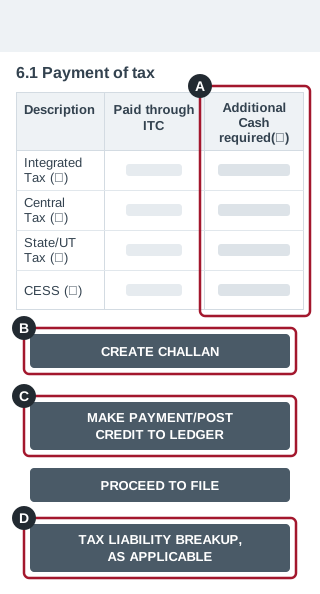
Illustration, not a screenshot: a simplified drawing of the 6.1 Payment of tax page. The real table has many more columns and scrolls sideways, and its buttons sit in rows under it. The real screen may look different. -
If you need cash, click CREATE CHALLAN (marked B). A challan is a payment slip, and the amounts are filled in. Under Payment Modes, choose how to pay, then click GENERATE CHALLAN:
- E-Payment: pay now by net banking, or by UPI or card if the page offers them.
- Over The Counter: choose the bank where you will pay, and whether you will pay by cash, cheque or demand draft. Print the challan and pay at that bank. All your over-the-counter challans for a tax period together can’t be more than ₹10,000 (the portal’s challan manual; rule 87(3) sets the ₹10,000 limit).
- NEFT/RTGS: print the challan and take it to your bank for a bank transfer.
An unpaid challan expires after 15 days (rule 87(2)). Once the money is in your cash ledger, the last column on this page shows zero (the portal’s GSTR-3B manual). Then go on to step 13. If you have left the return, open it again (steps 2 to 6) and click PROCEED TO PAYMENT.
Money gone from your bank but not in your cash ledger? Open Services > Payments > Challan History. “INITIATED” means the payment is still going through. “FAILED” means you need a new challan (the portal’s FAQs on payment failure).
-
Click MAKE PAYMENT/POST CREDIT TO LEDGER (marked C). A warning says this can’t be reversed. Click YES. From now on, you can’t change any figure in the return, except the tax liability breakup in step 14. But it isn’t filed yet: go straight on to step 14.
-
Click TAX LIABILITY BREAKUP, AS APPLICABLE (marked D in the picture above). This table shows any tax in this return that belongs to earlier months. An example is a sale from an earlier month that you report only now. The portal fills it in from the invoice dates in your GSTR-1, and works out interest from it. Its advisories say these figures are only a suggestion: if your records show that more of this return’s tax belongs to earlier months, enter that part in the table. Then click SAVE (marked A in the picture below). Do this every time: the portal’s manual says it is needed only when the table has figures, but its advisory of 16 Mar 2026 asks everyone to do it for now.
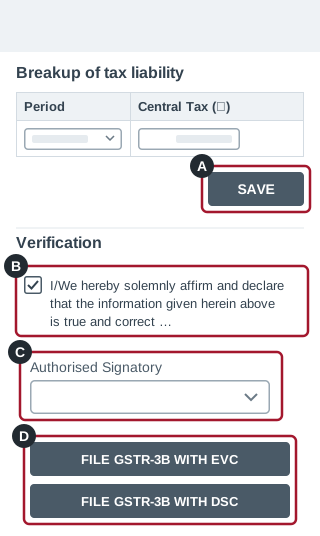
Illustration, not a screenshot: a simplified drawing of the page where you save the breakup of tax liability and sign the return. On the portal the two FILE buttons sit in one row. The real screen has more on it and may look different. -
Tick the declaration under Verification (marked B) and choose who signs from the Authorised Signatory list (marked C). If the tick box and the list don’t show below the breakup table, click BACK to the 6.1 Payment of tax page, then PROCEED TO FILE, and do it there.
-
Click FILE GSTR-3B WITH EVC or FILE GSTR-3B WITH DSC (marked D). If a warning asks whether you want to file, click PROCEED.
- With EVC: enter the OTP and click VERIFY.
- With DSC: choose your certificate and click SIGN.
-
The Filing Successful message shows your ARN, the acknowledgement reference number. Write it down or take a screenshot. Click OK.
-
Click DOWNLOAD FILED GSTR-3B and keep the PDF.
Check it worked
- The Filing Successful message says it is also sent to your registered email ID and mobile number.
- Search for the same period again on the File Returns page. The GSTR-3B tile should show “Filed” and a VIEW GSTR3B button.
- The PDF from step 18 no longer says DRAFT.
If it doesn’t show as filed
Open Services > Returns > Track Return Status. Choose the Financial Year and click SEARCH. Then search by ARN, by Return Filing Period (dates of filing) or by Status. The portal’s FAQs on tracking returns say what each status means:
- “FILED – VALID” (on the screen “Filed-Valid”) means it is filed.
- “SUBMITTED BUT NOT FILED” means it isn’t filed yet. If you have done step 13, open it again from step 2 and finish from step 14.
- “TO BE FILED” means it isn’t filed. Go through the steps again from step 2.
If the portal shows an error, take a screenshot. Then call the GST help desk on 1800-103-4786, or use the Grievance Redressal Portal for GST. Both are on the portal’s Contact Us page (as of 1 Nov 2026).
Fixing a mistake
After step 13, you can change only the tax liability breakup in step 14. A filed GSTR-3B can’t be revised: the portal’s FAQs say to adjust it in a later GSTR-3B. If you find a mistake yourself, the CGST Act says to correct it in the return for the month or quarter in which you notice it. You also pay interest on any tax paid late. The last chance is 30 Nov after the end of the financial year, or the day you file that year’s annual return if that is earlier (section 39(9)). For FY 2025-26 (1 Apr 2025 to 31 Mar 2026), you must file the GSTR-3B with the correction by 30 Nov 2026 at the latest.
- A sale you missed or got wrong: correct it in your next GSTR-1 (how to file GSTR-1 shows how). The tax then comes into that period’s GSTR-3B.
- ITC you forgot to claim can go in a later GSTR-3B, by the same deadline (section 16(4) of the CGST Act).
- ITC you claimed by mistake: reverse it in a later GSTR-3B, in table 4 under (B) ITC Reversed, row (2) Others (the portal’s GSTR-3B manual). Pay any interest due (section 50 of the CGST Act).
A qualified tax professional can help with anything bigger.
Filing late
If you file GSTR-3B after its due date, you pay a late fee for each day until you file, up to a maximum for each return. Section 47 of the CGST Act sets it. Central Tax notifications have since cut both the amount a day and the maximum. You also pay interest on tax paid late (section 50 of the CGST Act). Our late fee and interest calculator works out both for your dates, with their sources.
- The portal works out both after you file, and adds them to table 5.1 of your next GSTR-3B (its GSTR-3B manual and advisory of 16 Apr 2026). They can be paid only from your cash ledger.
- From the January 2026 tax period, the portal’s advisory says you can’t lower the interest it fills in: it is the least you owe (advisory of 30 Jan 2026). The advisory asks you to check it yourself: if your own working gives more, enter the higher figure. The portal’s GSTR-3B manual still says you can lower it a little, with a warning: don’t. If the portal’s figure looks wrong, click RE-COMPUTE INTEREST in table 5.1 and enter the new figure from the SYSTEM GENERATED GSTR-3B PDF.
- The portal files GSTR-3B only once the whole amount is paid: it can’t take part of it (its GSTR-3B manual). Until then, the late fee keeps adding up.
- After three years from its due date, a GSTR-3B is barred: you can’t file it (section 39(11) of the CGST Act), and the portal locks it. The portal’s FAQs on barred returns say you can apply to the tax officer to unbar (unlock) it, giving your reason, under Services > Returns > Application for Unbarring Returns. If the officer approves, you have 30 days from the approval to file it, or it is barred again.
Sources
- Manual: Creation, Saving, Payment of Taxes & Filing of Form GSTR-3B Return GST portal help pages (tutorial.gst.gov.in)
- FAQs: Form GSTR-3B GST portal help pages (tutorial.gst.gov.in)
- Manual: Viewing Form GSTR-2B GST portal help pages (tutorial.gst.gov.in)
- FAQs: Viewing Form GSTR-2B GST portal help pages (tutorial.gst.gov.in)
- Manual: Invoice Management System GST portal help pages (tutorial.gst.gov.in)
- FAQs: Invoice Management System GST portal help pages (tutorial.gst.gov.in)
- Manual: Create Challan (Post Login) GST portal help pages (tutorial.gst.gov.in)
- Manual: Make Online and Offline GST Payments (Post Login) GST portal help pages (tutorial.gst.gov.in)
- FAQs: Generate the Challan GST portal help pages (tutorial.gst.gov.in)
- FAQs: Payment Failure GST portal help pages (tutorial.gst.gov.in)
- FAQs: Electronic Cash Ledger GST portal help pages (tutorial.gst.gov.in)
- FAQs: Form to Change Profile for Quarterly Return and Monthly Payments (QRMP) Scheme GST portal help pages (tutorial.gst.gov.in)
- Manual: Track Return Status GST portal help pages (tutorial.gst.gov.in)
- FAQs: Track Return Status GST portal help pages (tutorial.gst.gov.in)
- FAQs: Barring/Unbarring of Returns for Taxpayers GST portal help pages (tutorial.gst.gov.in)
- FAQs: Form GSTR-1 GST portal help pages (tutorial.gst.gov.in)
- New Functionalities made available for Taxpayers on GST Portal (October-November-December, 2021) GST portal help pages (tutorial.gst.gov.in)
- Advisory regarding non-editable of auto-populated liability in GSTR-3B, 7 Jun 2025 GST portal news and updates (www.gst.gov.in)
- Attention : Important Advisory on IMS, 8 Oct 2025 GST portal news and updates (www.gst.gov.in)
- Advisory on reporting values in Table 3.2 of GSTR-3B, 5 Dec 2025 GST portal news and updates (www.gst.gov.in)
- Advisory & FAQ on Electronic Credit Reversal and Re-claimed Statement & RCM Liability/ITC Statement, 29 Dec 2025 GST portal news and updates (www.gst.gov.in)
- Advisory on Interest Collection and Related Enhancements in GSTR-3B, 30 Jan 2026 GST portal news and updates (www.gst.gov.in)
- Advisory regarding confirmation of “Tax Liability Breakup, As Applicable” in GSTR-3B-reg, 16 Mar 2026 GST portal news and updates (www.gst.gov.in)
- Advisory on Re-Computation of Interest under Table 5.1 of GSTR-3B, 16 Apr 2026 GST portal news and updates (www.gst.gov.in)
- Advisory on use of version 3.3 of emSigner, 19 Sep 2026 GST portal news and updates (www.gst.gov.in)
- Circular No. 143/13/2020-GST, 10 Nov 2020: Quarterly Return Monthly Payment Scheme CBIC (taxinformation.cbic.gov.in)
- Notification No. 76/2018-Central Tax, 31 Dec 2018 (lowers the late fee a day for GSTR-3B) CBIC (taxinformation.cbic.gov.in)
- Notification No. 19/2021-Central Tax, 1 Jun 2021 (lowers the maximum late fee for GSTR-3B, from the June 2021 tax period) CBIC (taxinformation.cbic.gov.in)
- Central Goods and Services Tax Act, 2017: section 9 (Levy and collection), sub-sections (3) and (4); section 10 (Composition levy); section 16 (Eligibility and conditions for taking input tax credit), sub-sections (2) and (4); section 17 (Apportionment of credit and blocked credits), sub-section (5); section 39 (Furnishing of returns), sub-sections (1), (7), (8), (9), (10) and (11); section 47 (Levy of late fee); section 49 (Payment of tax, interest, penalty and other amounts); section 50 (Interest on delayed payment of tax) CBIC’s tax information site: open GST, then Acts
- Central Goods and Services Tax Rules, 2017: rule 26 (Method of authentication), sub-rule (2); rule 36 (Documentary requirements and conditions for claiming input tax credit), sub-rule (4); rule 61 (Form and manner of furnishing of return), sub-rules (3) and (4); rule 61A (Manner of opting for furnishing quarterly return), sub-rule (2); rule 87 (Electronic Cash Ledger), sub-rules (2) and (3); rule 88D (Manner of dealing with difference in input tax credit available in auto-generated statement containing the details of input tax credit and that availed in return) CBIC’s tax information site: open GST, then Rules
- Contact Us: Help Desk Number and Grievance Redressal Portal for GST GST portal (www.gst.gov.in)