How to file a nil GSTR-3B
For a month or quarter with no sales, no purchases and no tax to pay. How to file GSTR-3B as a nil return on the GST portal, and check that it was filed.
Checked against Manual: Filing Nil Form GSTR-3B through Online, FAQs: Form GSTR-3B and Notification No. 05/2026-Central Tax on
By the end, you will have filed a nil GSTR-3B and saved a copy.
GSTR-3B is the return where you report your sales, the tax you pay and the input tax credit (ITC) you claim. ITC is the GST you paid on business purchases, which you can usually subtract from the GST you owe.
A normal taxpayer must file GSTR-3B for every month (or quarter), even one with no sales or purchases (section 39(8) of the CGST Act, the Central Goods and Services Tax Act, 2017).
In the composition scheme? You don’t file GSTR-3B (section 39(1) of the CGST Act). You file CMP-08 every quarter, even with no tax to pay, and GSTR-4 once a year. See our GST due dates page.
Before you start
- Your username and password for the GST portal. Type them only on gst.gov.in.
- A way to sign the return:
- EVC (electronic verification code): a one-time password (OTP) sent to the authorised signatory’s mobile and email. That is the person allowed to sign for the business. If you own the business alone, that is usually you (rule 26(2) of the CGST Rules, the Central Goods and Services Tax Rules, 2017). On a phone, use EVC.
- or a DSC (digital signature certificate) registered on the portal. It needs a computer, its USB token and the portal’s signing program, emSigner. A token issued on or after 21 Sep 2026 needs emSigner version 3.3 (portal advisory of 19 Sep 2026).
- If the business is a company (such as a private limited company) or an LLP (limited liability partnership), have a DSC ready. The portal may ask for one. Its list of new features for Oct to Dec 2021 says companies can now sign with EVC too. But some of its help pages still say a DSC is mandatory for companies and LLPs (such as question 36 of its FAQs on GSTR-1, the return of your sales).
- Your GSTR-1 for the same month or quarter, already filed. If you had no sales, file a nil GSTR-1: how to file GSTR-1 says when you can. Every earlier GSTR-3B must be filed too (section 39(10) of the CGST Act).
- The month must be over: you can file from the 1st of the next month (the portal’s FAQs on nil filing).
- The due date: our GST due dates page lists it.
To file by SMS instead, see the portal’s FAQs on nil filing by SMS. This way needs no DSC: you confirm with a code the portal sends to the authorised signatory’s mobile.
Is your month nil?
Only if every answer is no (the portal’s GSTR-3B FAQs):
- Did you sell or supply anything, even items with no GST?
- Did you buy anything, even with no GST? If you paid shop rent or an electricity bill for the month, the answer is yes.
- Did you claim ITC, or have to give back ITC claimed earlier?
- Do you owe any tax, interest or late fee, such as a late fee for an earlier return?
If any answer is yes, file a normal GSTR-3B instead: see how to file GSTR-3B.
If you file every quarter
In the QRMP scheme (quarterly return, monthly payment), you file GSTR-1 and GSTR-3B every quarter and pay tax month by month.
- For a quarter with nothing to report, file one nil GSTR-3B. The questions above cover all three months.
- In step 3, choose the quarter’s last month as the Period (September for July to September). The GSTR-3B tile shows only for that month.
- If you owe no tax, you pay nothing in the first two months (Circular No. 143/13/2020-GST, para 6.3).
If you are filing late
- You can still file a nil GSTR-3B after the due date.
- A late fee is charged for each day late, up to a maximum for each return. Section 47 of the CGST Act sets it. Central Tax notifications have since cut both the amount a day and the maximum. Our late fee and interest calculator works it out, with its sources: choose “Yes, a nil return”.
- The portal’s GSTR-3B manual says the late fee goes into table 5.1 of your next GSTR-3B. So your next GSTR-3B can’t be nil: file it as a normal return. The manual says the fee can be paid only from your electronic cash ledger: money you have paid in on the portal.
- After three years from its due date, a GSTR-3B is barred: you can’t file it (section 39(11) of the CGST Act), and the portal locks it. The portal’s FAQs on barred returns say you can apply to the tax officer to unbar (unlock) it, giving your reason, under Services > Returns > Application for Unbarring Returns. If the officer approves, you have 30 days from the approval to file it, or it is barred again.
Steps
The labels in bold are as the portal’s manuals show them on 31 Oct 2026. The real screens may differ a little.
-
Go to gst.gov.in and log in.
-
Open Services > Returns > Returns Dashboard. The File Returns page opens.
-
Choose the Financial Year and the Quarter, then the month as the Period. The portal asks for the quarter even if you file monthly. Click SEARCH (marked A in the picture below).
-
On the GSTR-3B tile, check the due date. Click PREPARE ONLINE (marked B).
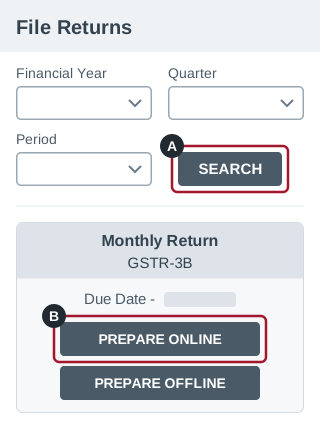
Illustration, not a screenshot: a simplified drawing of the File Returns page. The real screen has more on it and may look different. -
The first question is A. Do you want to file Nil return? Choose Yes (marked A in the picture below) and click NEXT (marked B). The other questions turn grey.
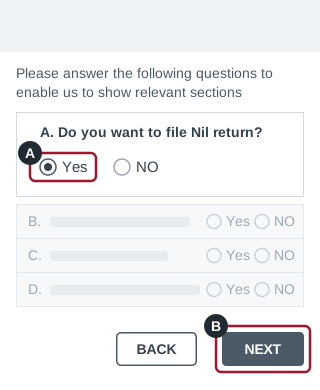
Illustration, not a screenshot: a simplified drawing of the first page of GSTR-3B, with its questions. The real screen has more on it and may look different. Can’t choose Yes, or no questions show? The portal’s manual on nil filing says this happens when:
- your GSTR-1 for the period has sales in it
- your GSTR-2B, the statement of ITC from your suppliers, has purchases for the period
- figures were saved in this GSTR-3B before
- interest or a late fee is due.
File a normal GSTR-3B instead: how to file GSTR-3B and the portal’s GSTR-3B manual show how.
-
The Filing of Tax page opens. Click PREVIEW DRAFT GSTR-3B (marked A in the picture below). A draft downloads, with DRAFT across it. Every figure in it should be zero.
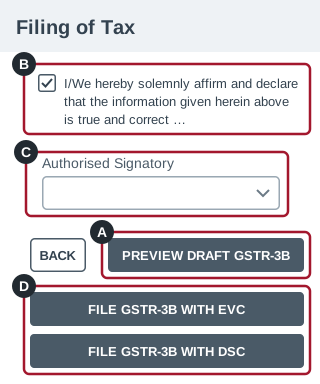
Illustration, not a screenshot: a simplified drawing of the Filing of Tax page. On the portal the four buttons sit in one row. The real screen has more on it and may look different. -
Tick the declaration (marked B in the picture above). Choose who signs from the Authorised Signatory list (marked C).
-
Click FILE GSTR-3B WITH EVC or FILE GSTR-3B WITH DSC (marked D), then PROCEED.
- With EVC: enter the OTP and click VERIFY.
- With DSC: choose your certificate and click SIGN.
-
The Filing Successful message shows your ARN, the acknowledgement reference number (marked A in the picture below). Write it down or take a screenshot. Click OK (marked B).
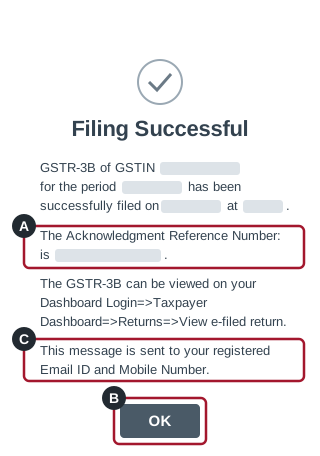
Illustration, not a screenshot: a simplified drawing of the Filing Successful message, with grey bars where your details appear. The real screen may look different. -
Click DOWNLOAD FILED GSTR-3B and keep the PDF.
Check it worked
- The message is also sent to your registered email ID and mobile number (marked C in the picture in step 9).
- Search for the same month again on the File Returns page. The GSTR-3B tile should show “Filed” and a VIEW GSTR3B button.
- The PDF from step 10 no longer says DRAFT.
If it doesn’t show as filed
Open Services > Returns > Track Return Status. Choose the Financial Year and click SEARCH. Then search by ARN, by Return Filing Period (dates of filing) or by Status. The portal’s FAQs on tracking returns say what each status means:
- “FILED – VALID” (on the screen “Filed-Valid”) means it is filed.
- “SUBMITTED BUT NOT FILED” or “TO BE FILED” means it isn’t. Go through the steps again from step 2.
If the portal shows an error, take a screenshot. Then call the GST help desk on 1800-103-4786, or use the Grievance Redressal Portal for GST. Both are on the portal’s Contact Us page (as of 31 Oct 2026).
Questions
I filed a nil GSTR-3B by mistake. Can I change it?
No, a filed GSTR-3B can’t be revised. The portal’s GSTR-3B FAQs say you adjust it in a later GSTR-3B. The last chance to adjust it is 30 Nov after the end of the financial year. If you file that year’s annual return before then, the last chance is the day you file it (section 39(9) of the CGST Act). For FY 2025-26 (1 Apr 2025 to 31 Mar 2026), you must file the GSTR-3B with the adjustment by 30 Nov 2026 at the latest. You pay interest on any tax paid late (section 50 of the CGST Act). A qualified tax professional can help.
My shop has closed. Do I still have to file nil returns?
Yes, for every month or quarter up to the date your cancellation starts from. If the business has stopped for good, apply to cancel your registration within 30 days of closing. If more than 30 days have passed, apply as soon as you can. The portal’s manual on cancelling a registration shows how.
From 1 Nov 2026, you can apply only after you have filed every return due by the day you apply. If you have filed GSTR-1 for a month or quarter, also file its GSTR-3B before you apply. In the application, you give the date you want the cancellation to start from, and the stock you still hold, with the tax due on it. After you apply, file the remaining returns for the months or quarters up to that date. File each one by its due date (the new rule 20 of the CGST Rules, in Notification No. 05/2026-Central Tax).
Since 1 Nov 2026, the portal can approve a cancellation by itself, without a tax officer. For that, file each remaining return on time, and pay everything you owe, including any interest, late fee or penalty. If the GST on your sales to registered buyers was ever over ₹2.5 lakh in a month, you must also file the final return, GSTR-10, within 3 days. If you file every quarter, check each quarter’s total too: the advisory says the portal checks each tax period. To see your application’s status, open Services > Registration > Track Application Status. Check it the day after you apply, and again the day after each remaining return is due. If it shows “Pending for Final Return”, the portal is waiting for GSTR-10, so file it at once. If anything is missing, an officer checks your application instead (the new rule 20(5) and (6) of the CGST Rules; the portal’s advisory of 1 Nov 2026).
Everyone else files GSTR-10 after the cancellation (section 45 of the CGST Act and rule 81 of the CGST Rules). The Act gives you 3 months from the date the cancellation starts from, or from the date of the cancellation order if that is later. But the advisory says 90 days from the date the cancellation starts from, when an officer cancels your registration. To be safe, file it within those 90 days, or as soon as the portal lets you if that is later. To file it, open Services > Returns > Final Return (the portal’s FAQs on GSTR-10).
Sources
- Manual: Filing Nil Form GSTR-3B through Online GST portal help pages (tutorial.gst.gov.in)
- Manual: Creation, Saving, Payment of Taxes & Filing of Form GSTR-3B Return GST portal help pages (tutorial.gst.gov.in)
- FAQs: Form GSTR-3B GST portal help pages (tutorial.gst.gov.in)
- FAQs: Filing Nil Form GSTR-3B through Online GST portal help pages (tutorial.gst.gov.in)
- FAQs: Filing Nil Form GSTR-3B through SMS GST portal help pages (tutorial.gst.gov.in)
- FAQs: Viewing Form GSTR-2B GST portal help pages (tutorial.gst.gov.in)
- Manual: Track Return Status GST portal help pages (tutorial.gst.gov.in)
- FAQs: Track Return Status (the return status types) GST portal help pages (tutorial.gst.gov.in)
- FAQs: Barring/Unbarring of Returns for Taxpayers GST portal help pages (tutorial.gst.gov.in)
- FAQs: Form to Change Profile for Quarterly Return and Monthly Payments (QRMP) Scheme GST portal help pages (tutorial.gst.gov.in)
- Circular No. 143/13/2020-GST, 10 Nov 2020: Quarterly Return Monthly Payment Scheme (para 6.3: no deposit needed for a month with nil tax liability) CBIC (taxinformation.cbic.gov.in)
- FAQs: Filing Form GST CMP-08 GST portal help pages (tutorial.gst.gov.in)
- FAQs: Filing Form GSTR-4 (Annual Return) (for FY 2019-20 Onwards) GST portal help pages (tutorial.gst.gov.in)
- Advisory on use of version 3.3 of emSigner, 19 Sep 2026 GST portal news and updates (www.gst.gov.in)
- FAQs: Form GSTR-1 GST portal help pages (tutorial.gst.gov.in)
- New Functionalities made available for Taxpayers on GST Portal (October-November-December, 2021) GST portal help pages (tutorial.gst.gov.in)
- Central Goods and Services Tax Rules, 2017: rule 26 (Method of authentication), sub-rules (1) and (2); rule 81 (Final return) CBIC’s tax information site: open GST, then Rules
- Central Goods and Services Tax Act, 2017: section 39 (Furnishing of returns), sub-sections (1), (2), (8), (9), (10) and (11); section 45 (Final return); section 47 (Levy of late fee); section 50 (Interest on delayed payment of tax) CBIC’s tax information site: open GST, then Acts
- Notification No. 05/2026-Central Tax, 26 Oct 2026: Central Goods and Services Tax (Amendment) Rules, 2026 (para 4: rule 20, from 1 Nov 2026) CBIC (taxinformation.cbic.gov.in)
- Manual: Cancellation of Registration GST portal help pages (tutorial.gst.gov.in)
- FAQs: Form GSTR-10 GST portal help pages (tutorial.gst.gov.in)
- Manual: Form GSTR-10 GST portal help pages (tutorial.gst.gov.in)
- Advisory on the Revised Process for Approval of Registration Cancellation application under Form GST REG-16, 1 Nov 2026 GST portal news and updates (www.gst.gov.in)
- Contact Us: Help Desk Number and Grievance Redressal Portal for GST GST portal (www.gst.gov.in)