How to file GSTR-1, the return of your sales
GSTR-1 is the return in which you report your sales. Who files it and how often, which tables to fill, how to file it online or as a nil return, and how to fix a mistake.
By the end of this guide you will have filed GSTR-1 for a month or a quarter. You will also know how to fix a mistake.
GSTR-1 is the return of your sales, which the portal calls outward supplies. Input tax credit is the GST a business paid on its purchases, which it can usually subtract from the GST it owes. A registered buyer can claim it on a purchase from you only after you report the sale (section 16(2)(aa) of the CGST Act, the Central Goods and Services Tax Act, 2017). The portal also uses your GSTR-1 to fill in the tax in your GSTR-3B, the return you pay tax with.
New GST rules start on 1 Nov 2026 (Notification No. 05/2026-Central Tax). They don’t change GSTR-1 itself, but two of them matter here. Adding a bank account now takes a check with a one-time password (OTP): see Have these ready. And the new rule 14B registration, for sellers using an online platform’s warehouse, has a monthly limit: see Check it worked.
Before you start
Who files GSTR-1, and how often
If you are registered for GST, you file GSTR-1, even for a month with no sales (a nil GSTR-1). A few special registrations don’t, such as non-resident taxpayers (section 37(1) of the CGST Act). Businesses in the composition scheme (where a small business pays tax at a fixed rate on its turnover) don’t file it either. They file CMP-08 every quarter and GSTR-4 once a year (the portal’s FAQs on these forms).
You file it every month, or every quarter in the QRMP scheme (quarterly return, monthly payment). QRMP is open if your turnover in the previous financial year was up to ₹5 crore (Notification No. 84/2020-Central Tax). You then file GSTR-1 and GSTR-3B every quarter, but pay tax every month.
IFF, in the QRMP scheme. The invoice furnishing facility (IFF) is optional and has no late fee (the portal’s IFF FAQs). It lets you report sales to registered buyers for the first two months of a quarter, so they get credit sooner. You can report up to ₹50 lakh of sales a month in it. The limit is in rule 59(2) of the CGST Rules (the Central Goods and Services Tax Rules, 2017), from Notification No. 82/2020-Central Tax. File it like GSTR-1, choosing that month as the Period. Don’t report those sales again in the quarter’s GSTR-1.
Our GST due dates page lists the due dates for GSTR-1, IFF, CMP-08 and GSTR-4.
Have these ready
- Your username and password for the GST portal. Type them only on gst.gov.in.
- A way to sign: EVC (electronic verification code), a one-time password (OTP) sent to the mobile and email of the authorised signatory, the person allowed to sign for the business. Or they can sign with their digital signature certificate (DSC), registered on the portal. A DSC needs a computer, its USB token and the portal’s signing program, emSigner. A token issued on or after 21 Sep 2026 needs emSigner version 3.3 (portal advisory of 19 Sep 2026). If the business is a company (such as a private limited company) or an LLP (limited liability partnership), have a DSC ready. The portal may ask for one. Its list of new features for Oct to Dec 2021 says companies can now sign with EVC too. But some of its help pages still say a DSC is mandatory for companies and LLPs (such as question 36 of its GSTR-1 FAQs).
- A bank account on your GST registration. Without one, the portal won’t take GSTR-1 or IFF (rule 59(6) of the CGST Rules). To add one, open Services > Registration > Amendment of Registration Non - Core Fields. Since 1 Nov 2026, the account is added only after an OTP check (FORM GST REG-14, from Notification No. 05/2026-Central Tax, and the portal’s manual on amending a registration):
- On the form’s OTP Verification tab, the primary authorised signatory is ticked already. Also tick one promoter or partner (such as an owner, partner or director), unless the signatory is one.
- Within 3 days of submitting the form, each person ticked must open Services > Registration > OTP Verification for GSTIN. There they enter the OTPs sent to their mobile and email. If this isn’t done in time, the account isn’t added.
- Your earlier returns filed: every earlier GSTR-1, and the GSTR-3B for the period before this one (section 37(4) of the CGST Act and rule 59(6) of the CGST Rules).
- The period must be over. You can file from the 1st of the next month (the portal’s GSTR-1 FAQs).
- Your sales records: every invoice, credit note and debit note. For each sale, you need the taxable value, the tax and the place of supply (the State the sale is made to). For a registered buyer, you also need their GSTIN (GST identification number). You also need the HSN code (the code for the kind of goods or services) and the quantity.
- Your buyers’ GSTINs, checked. The portal takes an invoice only if the buyer’s GSTIN was active on the invoice date (the portal’s GSTR-1 FAQs). Our GSTIN checker catches typing mistakes.
Which tables to fill
The main tiles on the GSTR-1 page:
- 4A, 4B, 6B, 6C - B2B, SEZ, DE Invoices: each sale to a registered buyer (B2B, business to business), invoice by invoice, including sales to special economic zone (SEZ) units. Deemed exports (DE) go here too: sales of Indian-made goods that the government treats as exports, though they stay in India (section 147 of the CGST Act).
- 5 - B2C (Large) Invoices: each sale to an unregistered buyer (B2C, business to consumer) in another State, where the invoice is more than ₹1 lakh (Notification No. 12/2024-Central Tax).
- 7 - B2C (Others): all your other sales to unregistered buyers, such as a shop’s sales to walk-in customers. Add one line for each place of supply and tax rate, with the total taxable value. The portal works out the tax (the portal’s GSTR-1 manual).
- 6A - Exports Invoices: each export invoice.
- 8A, 8B, 8C, 8D - Nil Rated Supplies: the totals of your sales that carry no GST (nil rated, exempted and non-GST).
- 9B - Credit / Debit Notes (Registered) and 9B - Credit / Debit Notes (Unregistered): the credit and debit notes you issued in the period.
- 12 - HSN-wise summary of outward supplies: your sales totalled by HSN code and tax rate, with the quantity.
- 13 - Documents Issued: for each kind of document you issued, such as Invoices for outward supply, the first and last serial number, the total number and how many you cancelled. Add a row for each further series with ADD DOCUMENT (the portal’s GSTR-1 manual). Table 13 doesn’t list cash memos as a kind of document. If you are not sure which kind of document your cash memos are, ask a qualified tax professional.
Fill the tiles for advances received (11A, 11B) and for sales through e-commerce operators (14) only if you had those. An e-commerce operator runs the online platform you sell through. If the operator pays the GST on some of those sales (section 9(5) of the CGST Act), report them in table 14, on its Liable to pay tax u/s 9(5) tab (the portal’s GSTR-1 manual). Don’t also put them in tables 4A, 4B, 7 or 8: the operator pays the GST on them, not you. And don’t fill table 15, “15 - Supplies U/s 9(5)”: only the operator reports there (FORM GSTR-1 and its instructions, as amended by Notification No. 26/2022-Central Tax).
Tables 12 and 13, since the May 2025 return period (GST portal advisory of 1 May 2025):
- Table 12 has two tabs: B2B Supplies for sales to registered buyers, and B2C Supplies for all other sales.
- Pick each HSN code from the portal’s list: you can’t type one in. To find a code, type at least 2 digits, or 4 letters of a word in its description, in the HSN box. Or use DOWNLOAD HSN CODES LIST (the portal’s GSTR-1 manual).
- Use at least 4 digits of the HSN code, or 6 if your turnover in the previous financial year was over ₹5 crore.
- The portal warns you if table 12 differs from your other tables by more than 10% (the portal’s GSTR-1 FAQs, as of 31 Oct 2026).
- Table 13 can’t be left empty when you report any sales.
Steps
The labels in bold are as the portal’s manuals show them on 31 Oct 2026. The real screens may differ a little.
-
Go to gst.gov.in and log in.
-
Open Services > Returns > Returns Dashboard.
-
Choose the Financial Year, the Quarter and the Period (the month; for a quarterly GSTR-1, the last month of the quarter). Click SEARCH (marked A in the picture below).
-
On the GSTR1 tile, click PREPARE ONLINE (marked B).
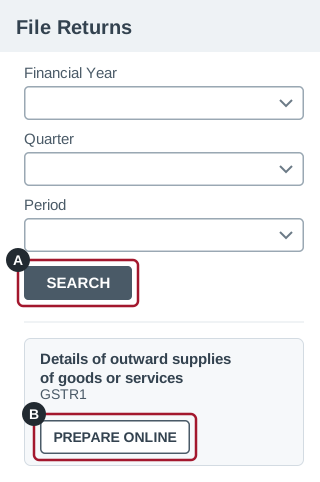
Illustration, not a screenshot: a simplified drawing of the File Returns page. The real screen has more on it and may look different. -
On the GSTR-1 page, click the tile for each kind of sale you made, for example 4A, 4B, 6B, 6C - B2B, SEZ, DE Invoices (marked B in the picture below).
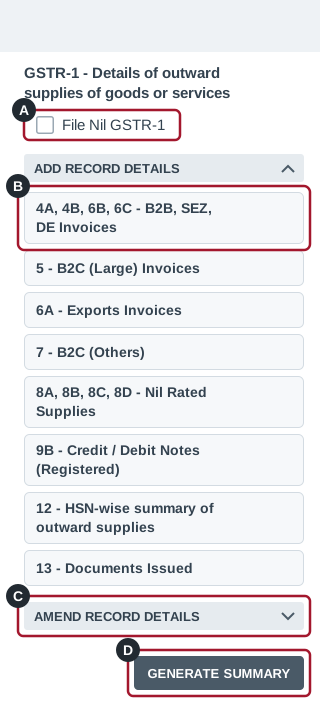
Illustration, not a screenshot: a simplified drawing of the GSTR-1 page, with only some of its tables. The real screen has more on it and may look different. -
In the table, click ADD RECORD, enter the invoice or total and click SAVE. Click BACK to return to the tiles.
-
Fill in 12 - HSN-wise summary of outward supplies after the other tables, because the portal checks its totals against them. Then fill in 13 - Documents Issued.
-
Click GENERATE SUMMARY (marked D in the picture above), then click the refresh icon at the top of the page. The status changes from “Not Filed” to “Ready to File”, and the button becomes PROCEED TO FILE/SUMMARY. You can generate the summary only once every 10 minutes (the portal’s GSTR-1 FAQs).
-
Click PROCEED TO FILE/SUMMARY. Click DOWNLOAD SUMMARY (PDF) (marked A in the picture below) and check every total against your books. Once you file, nothing in this return can be changed.
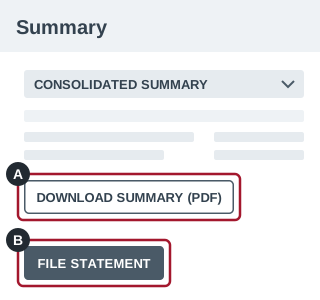
Illustration, not a screenshot: a simplified drawing of the summary page. The real screen has more on it and may look different. -
Click FILE STATEMENT (marked B in the picture above).
-
Tick the declaration (marked A in the picture below) and choose the Authorised Signatory (marked B).
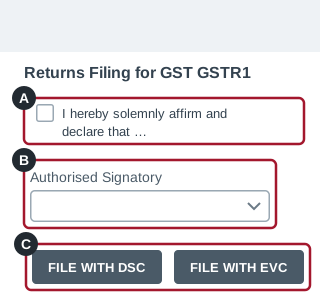
Illustration, not a screenshot: a simplified drawing of the page where you sign the return. The real screen has more on it and may look different. -
Click FILE WITH EVC or FILE WITH DSC (marked C in the picture above). With EVC, enter the OTP and click VERIFY. With DSC, click PROCEED, choose your certificate and click SIGN.
Check it worked
- The portal shows a message that your GSTR-1 was filed, with an ARN (acknowledgement reference number). Note it down.
- The status changes to “Filed”. You can also check it at Services > Returns > Track Return Status.
- The authorised signatory gets an SMS and an email.
- To keep a copy, click DOWNLOAD FILED (PDF) on the GSTR-1 page.
If the portal won’t let you file, read its message and check “Have these ready” and the rules for tables 12 and 13. It also stops a filing if:
- you haven’t paid or answered a notice from the portal about a mismatch between your returns (FORM GST DRC-01B or DRC-01C, rule 59(6) of the CGST Rules);
- you registered under rule 14A, and the GST on your sales to registered buyers (the tax, not the sales) is over ₹2.5 lakh for the month (the portal’s GSTR-1 manual). To report more than ₹2.5 lakh of that tax, withdraw from rule 14A with FORM GST REG-32 (the portal’s advisory of 21 Feb 2026). You can do so from the 1st of the month after the officer allows it (rule 14A(11), Notification No. 18/2025-Central Tax).
Since 1 Nov 2026, rule 14B lets a seller register in another State by using an e-commerce operator’s warehouse there as its place of business. If you registered this way, a similar limit applies. The GST on your sales to registered buyers must not be over ₹2.5 lakh a month (rule 14B(1); the portal’s advisory of 1 Nov 2026 on rule 14B). Sales to your own registrations under the same PAN (permanent account number) don’t count towards it. To report more, withdraw from rule 14B with FORM GST REG-32, giving a place of business of your own in that State. As with rule 14A, you can report more from the 1st of the month after the officer allows it (rule 14B(25) and (26), Notification No. 05/2026-Central Tax). The portal’s GSTR-1 manual names only rule 14A, so it doesn’t say whether the portal also stops these filings.
A month with no sales: nil GSTR-1
The portal’s FAQs on nil GSTR-1 say you can file one only if, in that month or quarter, you had:
- no sales of any kind, including exports, sales to SEZ units, deemed exports and sales where the buyer pays the GST (reverse charge);
- no changes to sales you reported earlier;
- no credit notes or debit notes to report or change;
- no advances received for services to report or adjust.
Online: do steps 1 to 4 above. On the GSTR-1 page, first delete any saved records: RESET clears them all. Then tick File Nil GSTR-1 (marked A in the picture of the GSTR-1 page), click FILE STATEMENT and do steps 11 and 12.
By SMS (the same FAQs): send these messages to 14409 from the authorised signatory’s registered mobile number. It works only if nothing is saved in your GSTR-1 online for that period.
- Send
NIL R1 GSTIN PERIOD, with your GSTIN in place of GSTIN. In place of PERIOD, write the month and year as six digits: 102026 for October 2026. For a quarter, use its last month: 122026 for October to December 2026. - You get a six-digit verification code. It works once, for 30 minutes.
- Send
CNF R1 CODE, with the code in place of CODE. - The portal sends the ARN to the same mobile and to your registered email.
For help, send HELP R1 to 14409.
Fixing a mistake
Before you file: change or delete any record as often as you need, or clear them all with RESET.
After you file GSTR-1, but before that period’s GSTR-3B: use GSTR-1A to add sales you missed or correct sales you reported (rule 59(1) of the CGST Rules, from Notification No. 12/2024-Central Tax). The portal’s GSTR-1A FAQs say:
- It opens on GSTR-1’s due date, or on the day you file GSTR-1 if that is later. It closes when you file that period’s GSTR-3B.
- It is optional, has no due date and can be filed only once for a period. There is no nil GSTR-1A.
- It can’t change a buyer’s GSTIN: do that in a later GSTR-1.
- Anything saved in it must be filed or deleted before the portal takes your GSTR-3B.
The corrected tax goes into that period’s GSTR-3B. Since the July 2025 tax period, GSTR-3B won’t let you edit the tax that comes from GSTR-1 (the portal’s advisory of 7 Jun 2025). File GSTR-1A from its tile on the Returns Dashboard, much as you file GSTR-1. After FILE STATEMENT, tick the box on the next page and click CONFIRM. Then click the refresh button, and click READY TO FILE to go on to sign (the portal’s GSTR-1A manual).
After that period’s GSTR-3B is filed: correct it in a later GSTR-1. On the GSTR-1 page, open AMEND RECORD DETAILS (marked C in the picture of the GSTR-1 page) and choose the table, for example 9A - Amended B2B Invoices. Choose the Financial Year, enter the Invoice No. and click AMEND INVOICE. Change the details and click SAVE. In that later return, you pay tax only on the difference.
Time limit (section 37(3) of the CGST Act): you can’t correct a financial year’s sales after 30 Nov of the next financial year. If you file that year’s annual return earlier, the limit is the day you file it. For example, sales of FY 2025-26 (1 Apr 2025 to 31 Mar 2026) can be corrected until 30 Nov 2026.
Filing late
If you file GSTR-1 after its due date, you pay a late fee for each day until you file, up to a maximum for each return. Section 47 of the CGST Act sets it. Central Tax notifications have since cut both the amount a day and the maximum. Our late fee and interest calculator works out the fee for your dates and its maximum, with its sources.
You can’t file a GSTR-1 more than three years after its due date (section 37(5) of the CGST Act, in force since 1 Oct 2023 by Notification No. 28/2023-Central Tax). Since 1 Dec 2025 the portal locks such a return, IFF and GSTR-1A included (its advisory of 29 Oct 2025). The portal’s FAQs on barred returns say you can apply to the tax officer to unbar it, giving your reason, under Services > Returns > Application for Unbarring Returns. If the officer approves, you have 30 days from the approval to file it, or it is barred again. If you have an old GSTR-1 still to file, file it soon.
Sources
- Manual: Creation and Submission of Statement of Outward Supplies (Form GSTR-1) GST portal help pages (tutorial.gst.gov.in)
- FAQs: Form GSTR-1 (with the FAQs on Form GSTR-1A and on Table 12) GST portal help pages (tutorial.gst.gov.in)
- New Functionalities made available for Taxpayers on GST Portal (October-November-December, 2021) GST portal help pages (tutorial.gst.gov.in)
- Manual: Filing Nil Form GSTR-1 Online by Normal Taxpayer GST portal help pages (tutorial.gst.gov.in)
- FAQs: Filing Nil Form GSTR-1 through SMS GST portal help pages (tutorial.gst.gov.in)
- Manual: Creation and Submission of Statement of Outward Supplies (Form GSTR-1A) GST portal help pages (tutorial.gst.gov.in)
- FAQs: Form GSTR-1A GST portal help pages (tutorial.gst.gov.in)
- FAQs: Furnishing Documents in Invoice Furnishing Facility (IFF) under QRMP Scheme GST portal help pages (tutorial.gst.gov.in)
- Manual: Furnishing Documents in Invoice Furnishing Facility (IFF) under QRMP Scheme (quarterly GSTR-1 is filed for the third month of the quarter) GST portal help pages (tutorial.gst.gov.in)
- FAQs: Barring/Unbarring of Returns for Taxpayers GST portal help pages (tutorial.gst.gov.in)
- FAQs: Filing Form GST CMP-08 GST portal help pages (tutorial.gst.gov.in)
- FAQs: Filing Form GSTR-4 (Annual Return) (for FY 2019-20 Onwards) GST portal help pages (tutorial.gst.gov.in)
- Manual: Amendment of Fields other than Principal Place of Business (adding a bank account, and the OTP verification) GST portal help pages (tutorial.gst.gov.in)
- Central Goods and Services Tax Act, 2017: section 9 (Levy and collection), sub-section (5); section 16 (Eligibility and conditions for taking input tax credit), sub-section (2)(aa); section 37 (Furnishing details of outward supplies), sub-sections (1), (3), (4) and (5); section 47 (Levy of late fee); section 147 (Deemed exports) CBIC’s tax information site: open GST, then Acts
- Central Goods and Services Tax Rules, 2017: rule 59 (Form and manner of furnishing details of outward supplies), sub-rules (1), (2), (4) and (6); rule 14A; rule 26 (Method of authentication) CBIC’s tax information site: open GST, then Rules
- Notification No. 05/2026-Central Tax, 26 Oct 2026: Central Goods and Services Tax (Amendment) Rules, 2026 (in force from 1 Nov 2026, some parts later; rule 59 and FORM GSTR-1 unchanged; new rule 14B; a new FORM GST REG-14 for amendments) CBIC (taxinformation.cbic.gov.in)
- Notification No. 84/2020-Central Tax, 10 Nov 2020 (quarterly returns for turnover up to ₹5 crore) CBIC (taxinformation.cbic.gov.in)
- Notification No. 82/2020-Central Tax, 10 Nov 2020 (rule 59, with the invoice furnishing facility) CBIC (taxinformation.cbic.gov.in)
- Notification No. 12/2024-Central Tax, 10 Jul 2024 (Form GSTR-1A, and ₹1 lakh for B2C (Large) from 1 Aug 2024) CBIC (taxinformation.cbic.gov.in)
- Notification No. 18/2025-Central Tax, 31 Oct 2025 (rule 14A, registration for output tax on sales to registered buyers up to ₹2.5 lakh a month) CBIC (taxinformation.cbic.gov.in)
- Notification No. 26/2022-Central Tax, 26 Dec 2022 (fifth amendment (2022) to the CGST Rules: tables 14 and 15 of FORM GSTR-1) CBIC (taxinformation.cbic.gov.in)
- Notification No. 28/2023-Central Tax, 31 Jul 2023 (brings section 37(5) into force from 1 Oct 2023) CBIC (taxinformation.cbic.gov.in)
- Notification No. 4/2018-Central Tax, 23 Jan 2018 (lowers the late fee a day for GSTR-1) CBIC (taxinformation.cbic.gov.in)
- Notification No. 20/2021-Central Tax, 1 Jun 2021 (lowers the maximum late fee for GSTR-1, from the June 2021 tax period) CBIC (taxinformation.cbic.gov.in)
- Advisory for FORM GSTR-1A, 26 Jul 2024 GST portal news and updates (www.gst.gov.in)
- Advisory for furnishing bank account details before filing GSTR-1/IFF, 23 Aug 2024 GST portal news and updates (www.gst.gov.in)
- Reporting of HSN codes in Table 12 and list of documents in table 13 of GSTR-1/1A, 1 May 2025 GST portal news and updates (www.gst.gov.in)
- Advisory regarding non-editable of auto-populated liability in GSTR-3B, 7 Jun 2025 GST portal news and updates (www.gst.gov.in)
- Advisory to file pending returns before expiry of three years, 29 Oct 2025 GST portal news and updates (www.gst.gov.in)
- Facility for Withdrawal from Rule 14A, 21 Feb 2026 GST portal news and updates (www.gst.gov.in)
- Advisory on use of version 3.3 of emSigner, 19 Sep 2026 GST portal news and updates (www.gst.gov.in)
- Advisory on Simplified Registration Scheme under Rule 14B of the CGST Rules, 2017, 1 Nov 2026 GST portal news and updates (www.gst.gov.in)
- Advisory on Key Changes in the GST Registration Amendment Process, 1 Nov 2026 GST portal news and updates (www.gst.gov.in)